Write for movement, not only appearance
Include a subject, action, environment, and camera direction. Keep each short clip focused on one coherent moment.
Include a subject, action, environment, and camera direction. Keep each short clip focused on one coherent moment.
Generation is not connected yet. Explore the controls and prepare your next idea.
Describe the subject, setting and intended visual direction.
Choose the task controls, model and output options, then check the prompt and estimate.
When a task completes, inspect the details before downloading or using the result in another creation.
Include a subject, action, environment, and camera direction. Keep each short clip focused on one coherent moment.
Options for Text to Video depend on the selected model. Check supported inputs, aspect ratio, resolution, and output count before reviewing the server-side credit estimate.
Keep prompts and settings so you can revisit the direction. Review a completed result before downloading or reusing it. A local reference preview is different from an uploaded or generated asset.
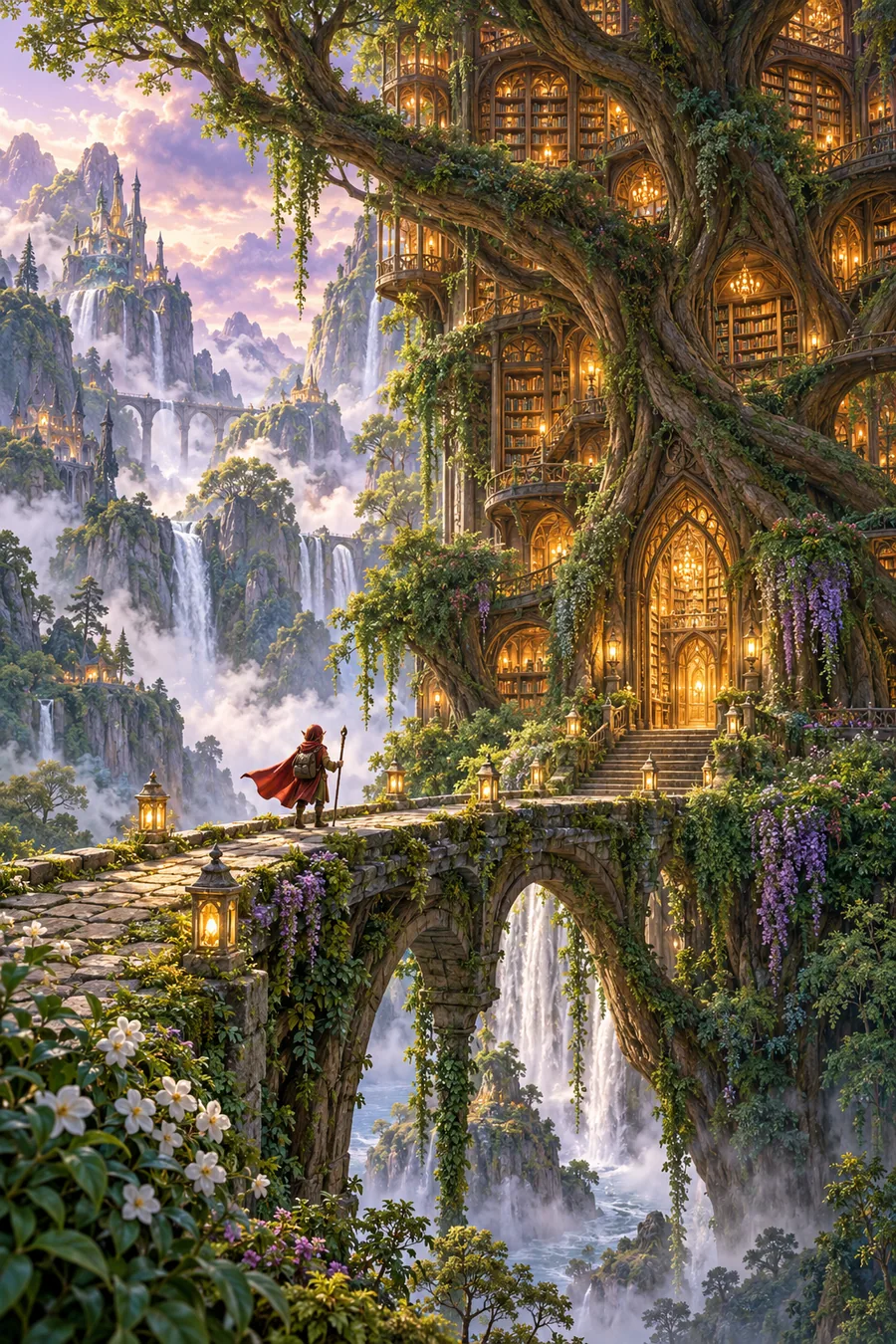
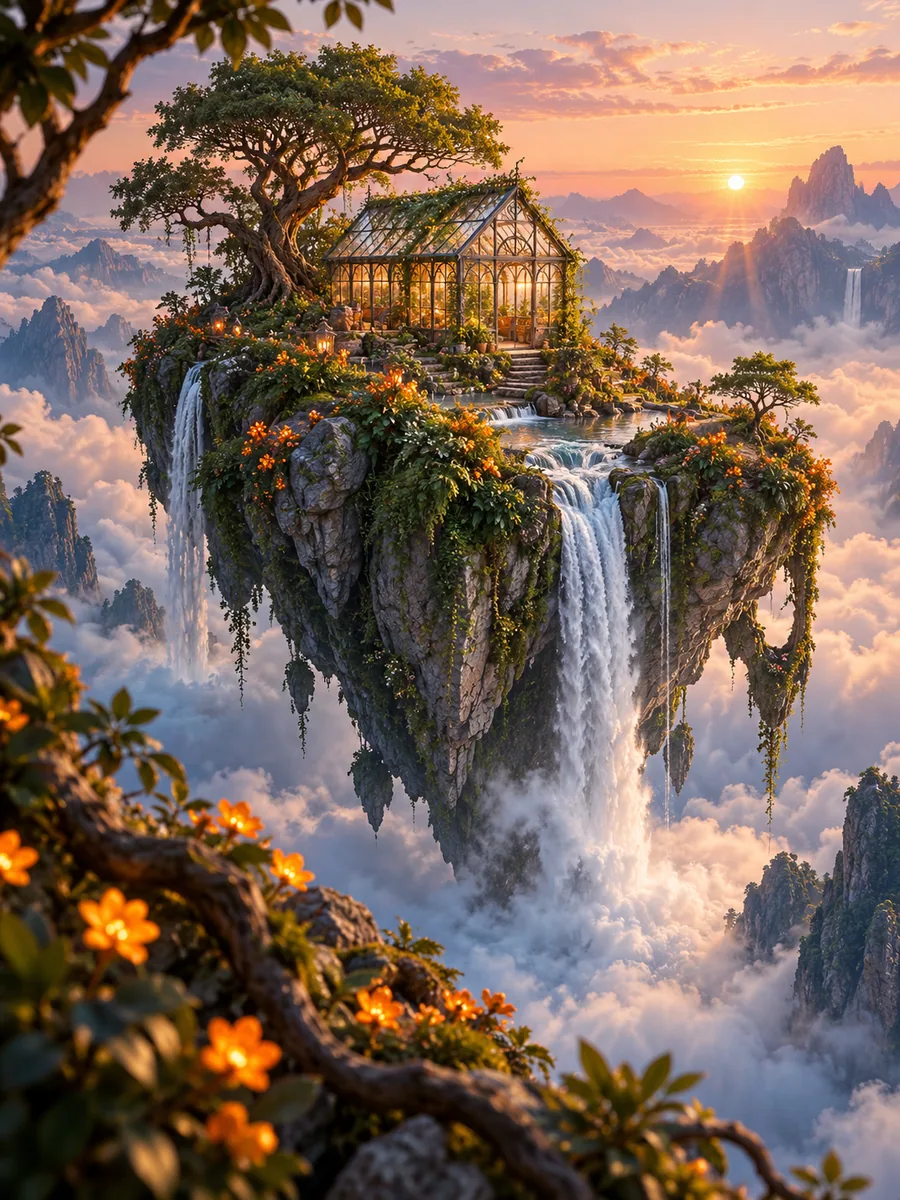
These original visual examples illustrate creative directions. They are not results generated by the currently unconfigured website service.
Text, image and reference video generation with native audio.
Accelerated text and image video generation.
Long-take text and image video with synchronized audio.
Multimodal video generation with native stereo audio.
Reference-site fast model label; a matching provider endpoint is required.
Faster video drafts from text or a first frame.
Plan preview. Purchasing is not open yet.
Billed annually, total: $120.00
Billed annually, total: $240.00
Billed annually, total: $480.00
Annual plans bill the full year and grant annual credits upfront. Purchasing is closed. No payment will be taken. Refund Policy
Answers about source files, model settings, credits, task history and responsible use.
Text to Video is a focused video workflow in CreoArt. Text to Video with AI. Prepare your source, choose a model, and control the result in CreoArt. Prepare your input and use the controls shown for this task.
Write a prompt, choose a model and settings, then review the estimate before submitting.
You can explore the workspace and prepare a local draft before signing in. Submitting and managing account-owned generation tasks requires an account.
Video workflows accept the file types and duration limits displayed beside the uploader. Text-to-video starts from a prompt; image-to-video starts from an image.
Describe the subject, action, setting and camera direction. Mention details that must remain consistent across the shot.
Use the model selector to compare the options available for this workflow. Supported parameters and the final estimate can change when you switch models.
Credits depend on the model, options and output count. The server calculates the applicable estimate before submission; a client-entered amount is not authoritative.
No. Local editing controls help you prepare a draft, but a model connection must be configured before an inference request can run. The site must not label a preview as a generated result.
Resolution options come from the selected model. Not every model supports every size; the controls and model detail page show the configured capability range.
Choose a supported ratio in the task settings. For edits and expansions, also check the original framing and the target canvas before submitting.
Timing depends on the provider, selected model, options and queue. Follow the task status rather than assuming a guaranteed completion time.
Refine the instruction, simplify conflicting requirements or choose a different compatible model. A new generation can incur a new cost, so check the estimate again.
Open My creations while signed in to review account-owned history. A completed task and a durable downloadable asset are separate states; follow the result and retention information shown.
Usage depends on the model provider terms, the inputs you own or license, and the applicable product terms. A paid plan alone is not a blanket copyright guarantee.
A local file preview stays in the browser until an upload or task is submitted. Connected generation may send the necessary material to the configured provider; review the Privacy Policy.
Use text-to-video for an idea without a source frame, image-to-video to animate a picture, video editing to change an existing clip, and upscaling to improve delivery resolution.